Searches
An Investigation Search is the place where users of VisualCortex can look specific people, faces, license plates and more.
Filters
When you start a new Search, you'll get a blank screen with filters.
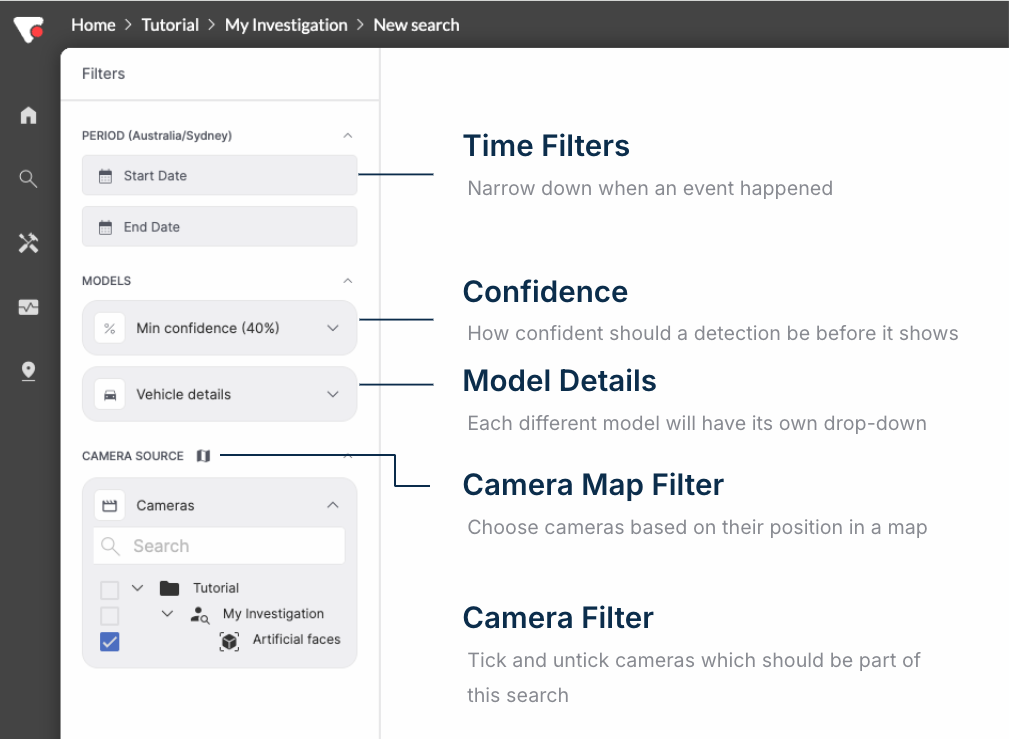
General Filters
All searches can have "general" filters, not related to a Model. These include:
- Time Filters - Choose the Time and Date you want to look for detections in
- Confidence - All Models have the concept of confidence for what they've detected. A lower confidence generally means more (but less accurate) results, while a higher confidence means fewer, but more high quality results.
- Camera Filters - You can change which Sources you want to look for detections in. You can do this by ticking and unticking sources, or by choosing an area on a map (if you've added in Geolocation information)
Model-Specific Filters
Every Model which you add into an Investigation comes with their own options for searching. VisualCortex has a range of built-in models, as well as partner models. VisualCortex even supports custom models. The idea is that anything that a model can detect can be selected here in the model-specific filter panel.

Most model filters are Select boxes, where you can choose one or more options. An example of this might be Vehicle Colour. Select boxes usually contain mutually exclusive items, and work as OR filters - meaning if you were to select both Blue and Green, VisualCortex would show you vehicles which were either blue or green.
Free Text Search
Some models allow free-text search. An example of this is the Vehicle Detils Numberplate field.
Free text search follows these rules:
_means a single wildcard character%mean 0 or more characters
Examples include:
T%means all plates starting withT- eg.
TFM112,T00330,TSR012
- eg.
ABC%3means all plates starting withABCand ending in3- eg.
ABC123,ABCGH3,ABC77773
- eg.
ABC_3meansABC+ any one character +3- eg.
ABC13,ABC23,ABCD3
- eg.
ABC123means match this plate exactly
Results
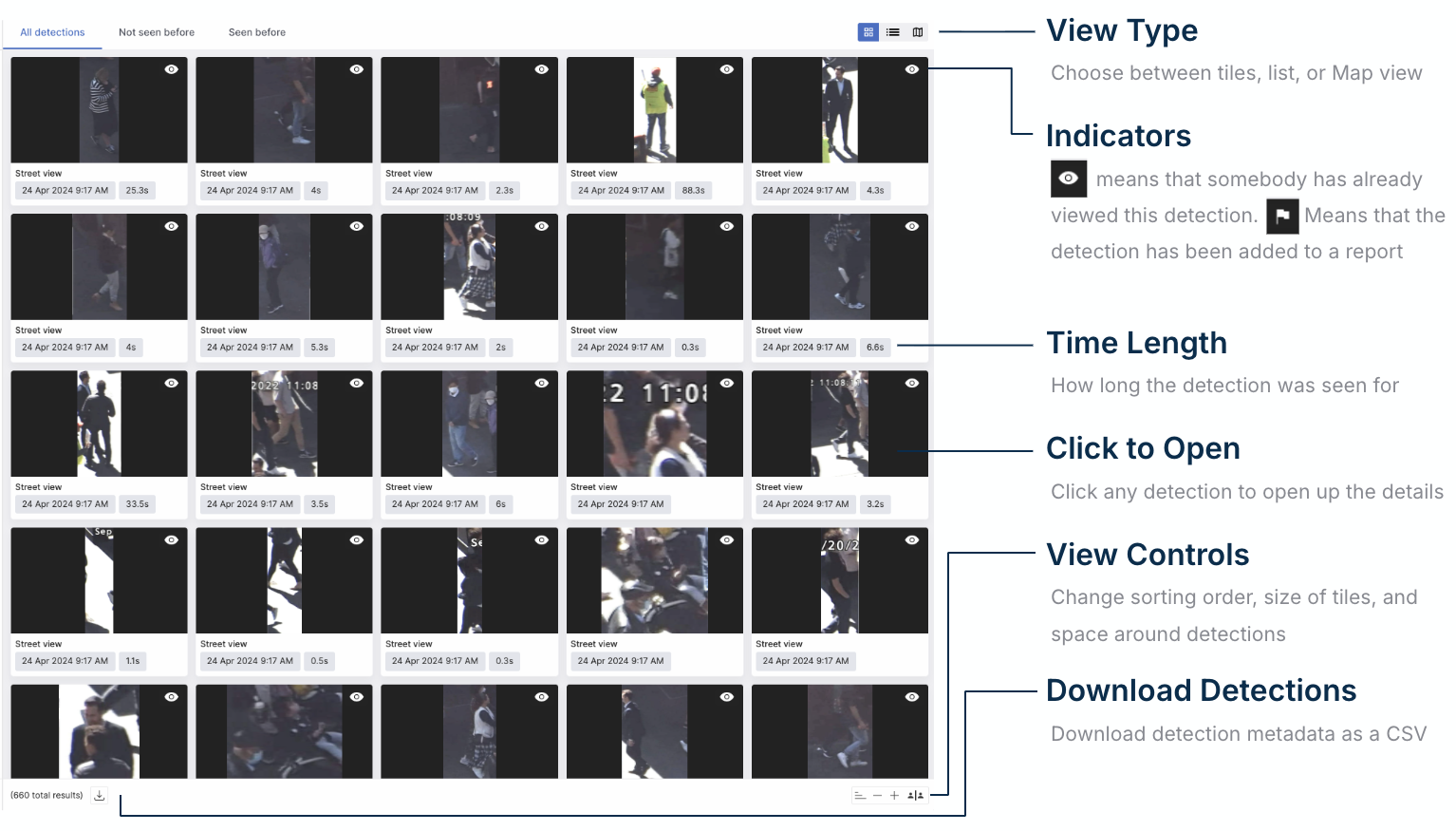
Once you've set your filters and pressed search, results will appear in a grid. Each detection has metadata and indicators as to whether or not it's been previously viewed.
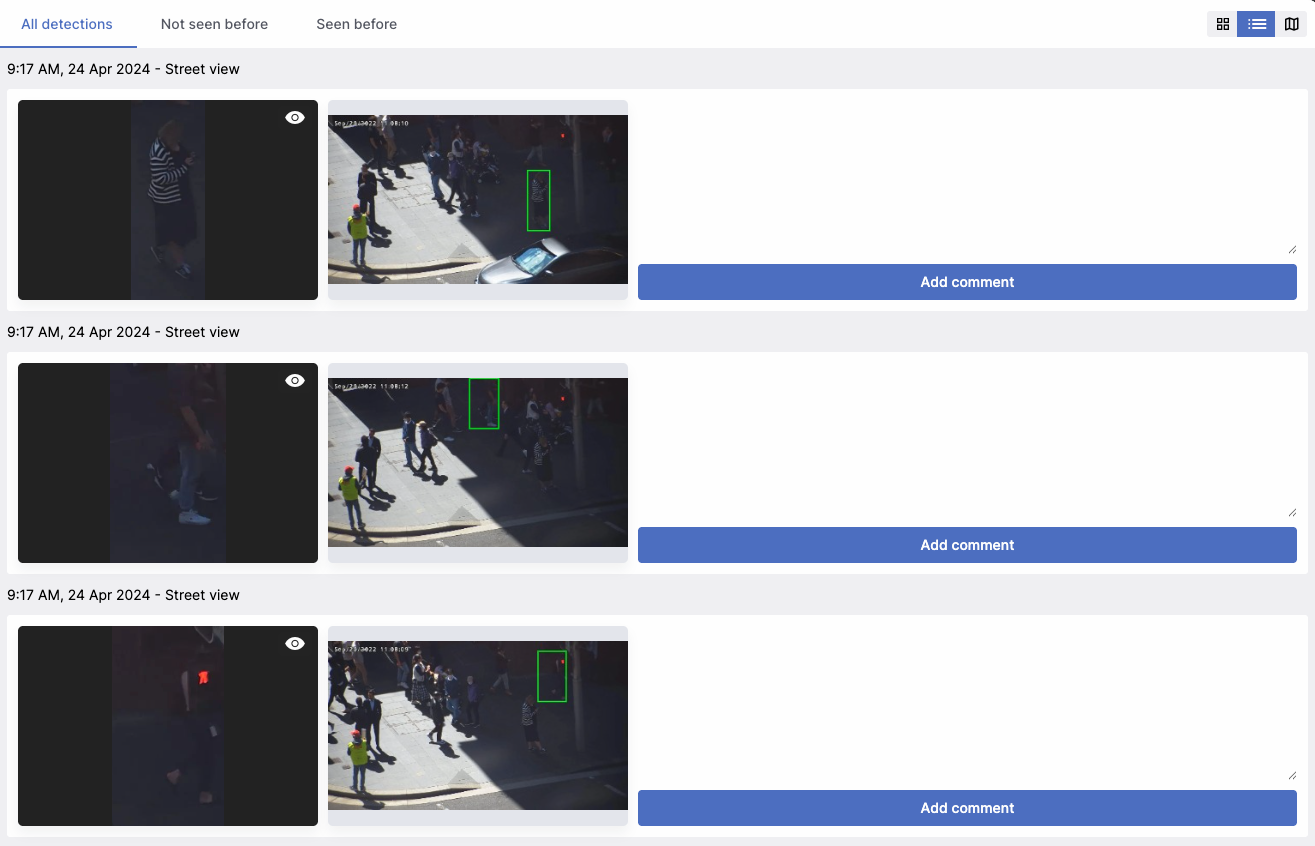
You can change the results to display in a list view if desired. This shows the detection, as well as the area in the full frame in which it was detected.
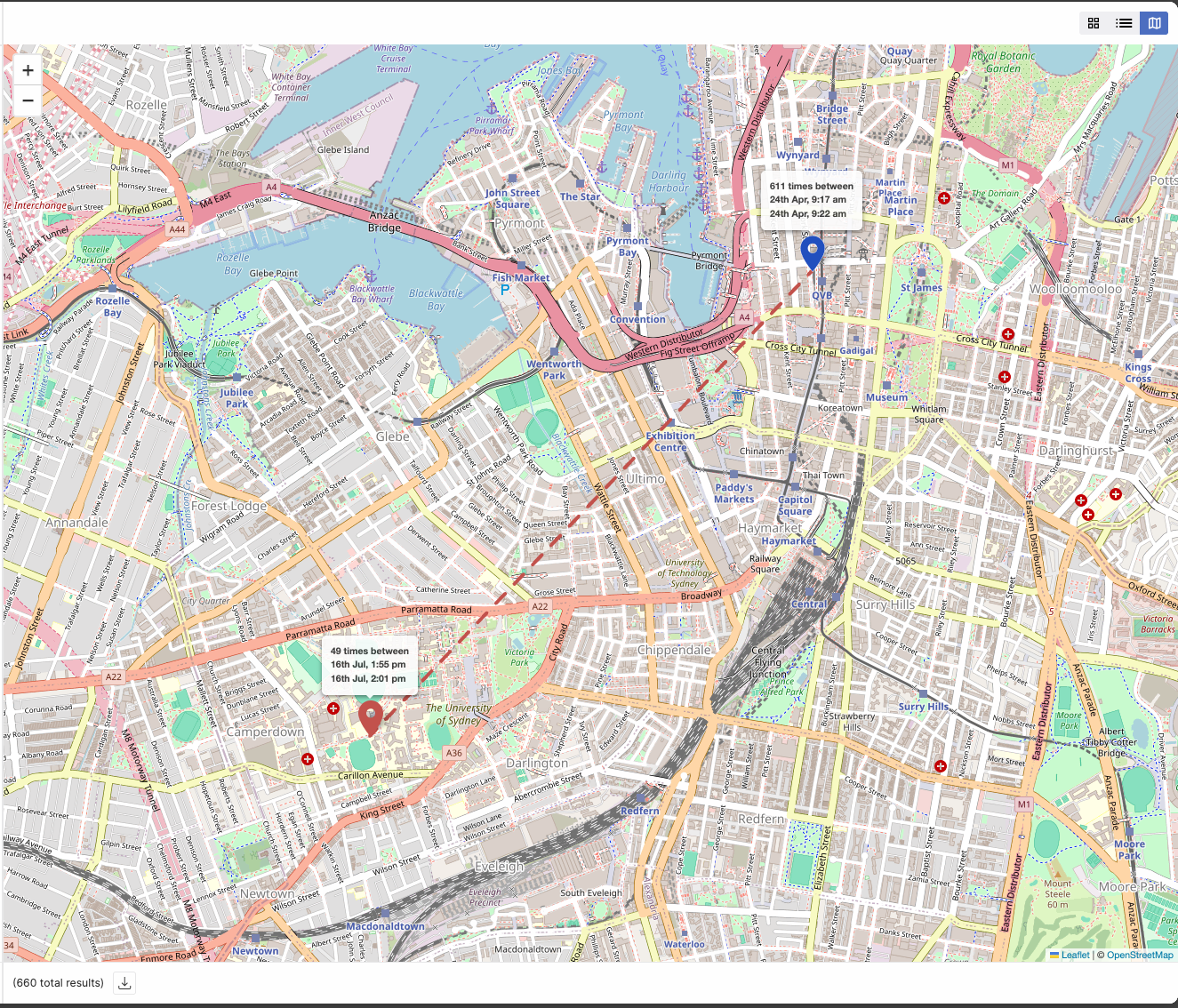
Lastly, map view allows you to see detections on a map if applicable. Click on any of the map markers to view the detections seen at that marker in a list.
Detections
When you click on a result from the main results page, you'll be presented with a popup window. This window has a variety of information about the detections, and gives you the opportunity to add information to the Investigation report. The image itself is also interactive; you can drag it around and zoom in and out.
Important: Ensure you click the Add to report button to add a detection and any commentary to the Investigation Report

Controls
The detection popup comes with a number of controls to help you gain more insight. These are outlined in the below image.

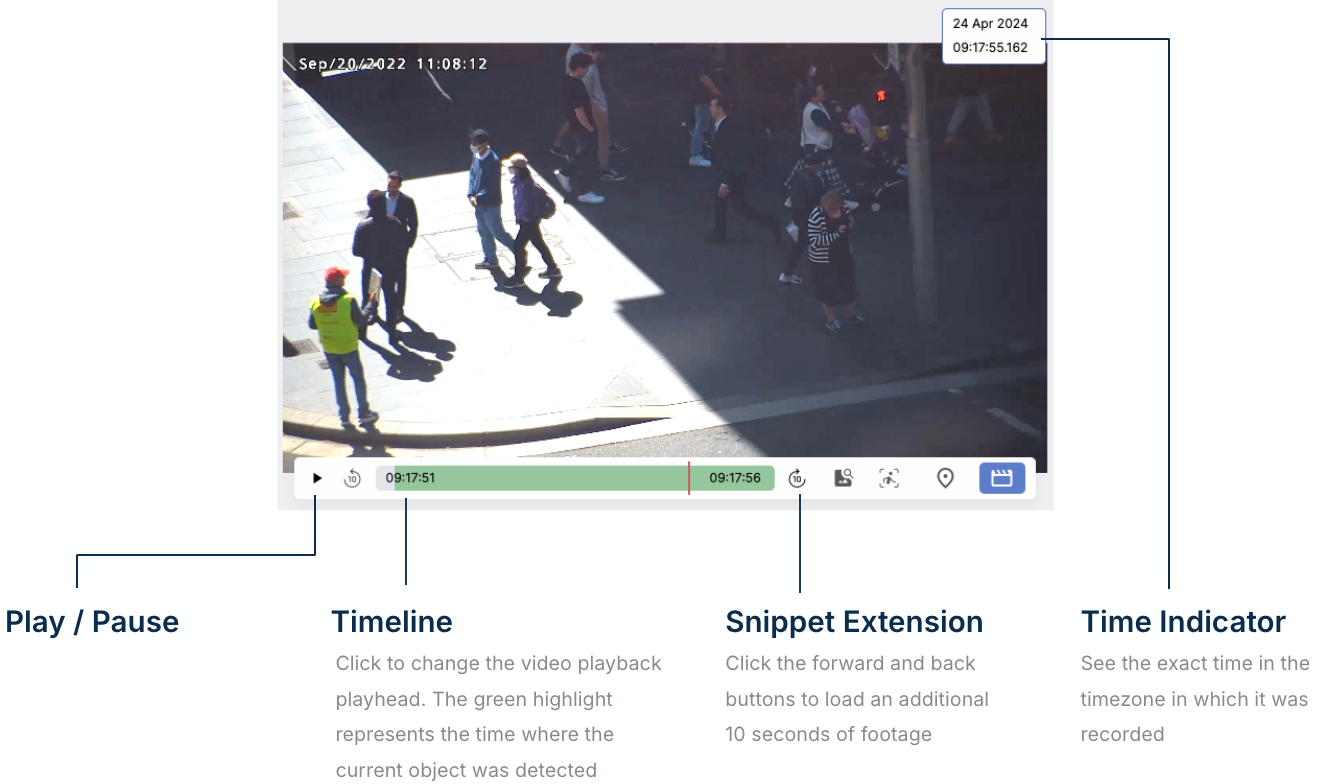
When viewing video snippets, a different set of controls appears. The functionality is outlined in the below image.